Import the match sheet after every match
Typing the sheet in by hand after every match is what makes many clubs give up on stats. In VOC, the sheet can come straight from the game, in the app, or from a screenshot of the game’s screen. Typing it in is for when you really have to.
Link your club in the settings
In the app, open Club settings and then Club in EA SPORTS FC. Search for the club by its in-game name and pick the right one. From then on, the app knows where to fetch the games.
Linking is done in the app, because the web can’t search the game. By default, the club settings are handled by the owner.
Once per edition of the game
With every new edition of EA SPORTS FC, clubs get a new number. At the start of each season, link the club again. VOC warns you in the settings when the link is from a previous edition.
Import: pick the game and who’s who
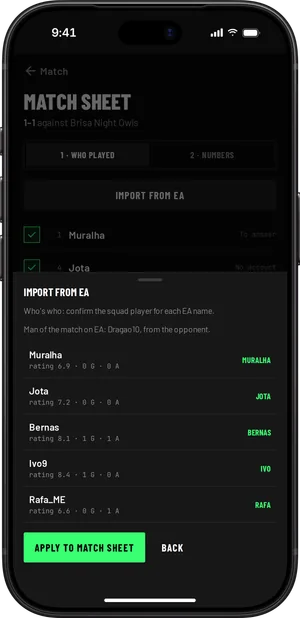
After the match, open it in VOC and go to the match sheet. Tap Import from EA.
- The app shows the club’s latest games, league, playoff and friendlies, and picks the one that matches your match’s time on the calendar.
- You confirm it’s that game. Games already used on another sheet don’t show up again.
- Every in-game name is linked to a squad player. The first time, you choose; next time, VOC already remembers who’s who.
- You apply it to the sheet, review it and save.
The sheet gets each player’s rating, goals, assists and minutes and, when the game provides them, shots, passes, tackles and goalkeeper saves. The MVP comes from the game itself: the player of the match. If the award goes to an opponent, nobody on your side gets the star.
When to use a screenshot
Sometimes the import isn’t possible: the club isn’t linked, the match has dropped off the list the game shows, or you’re on the web. Then, use a screenshot.
- At the end of the match, open the Player Performance screen.
- Take a screenshot with the whole player table in view, with the game in Portuguese or English.
- In VOC, choose Import screenshot on the sheet. It works in the app and on the web.
- VOC shows you what it read and you confirm who’s who before saving.
Numbers read from an image can be wrong. Always check them before saving.
Review the MVP and the goals before saving
Imported or read, the sheet is yours until you save it. Check who played, the positions and the MVP. If a name with goals or assists is left without a player, VOC asks you to confirm before applying it.
Then the sheet warns you if the players’ goals don’t match the score. One goal short may be an own goal; one goal too many is almost always a mistake. The sheet counts as soon as you save it.
Games are kept
The game only shows the latest games of each type. VOC keeps the ones it fetches, so they aren’t lost. While a match is waiting for its sheet, the app of whoever fills in the sheets fetches the games on its own.
In EA data, on the match page, you see the numbers the game gave next to the sheet. A game that isn’t on the calendar yet appears in Results, with the EA games filter, and you can create it from there.
Friendlies and limits
In friendlies, the game gives fewer extra numbers, but the basic sheet still comes through: rating, goals, assists, minutes and the MVP.
By default, the owner, manager, coach and analyst can import and fill in sheets. If your club has a custom role for this, give it the right level for match sheets.
VOC is independent and not affiliated with Electronic Arts. The import uses the data the game shows publicly and may stop working if EA changes it. Screenshots and typing the sheet in are always there.