Add the VOC bot to your club’s Discord
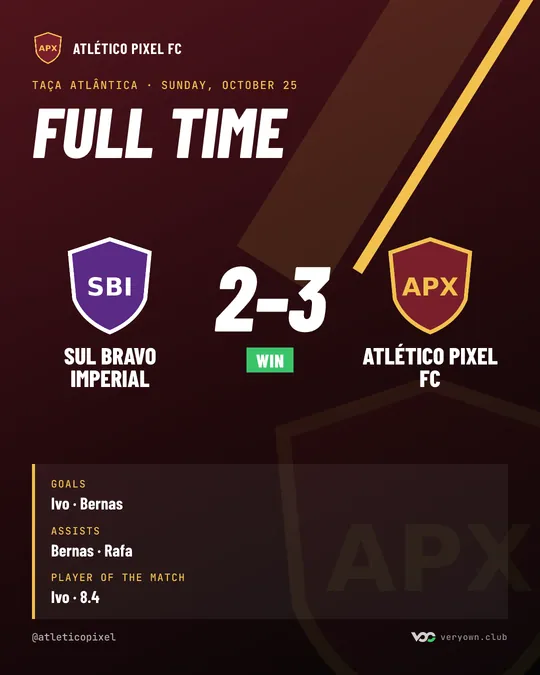
Discord is where the club talks. The VOC bot brings what happens on VOC there: the week’s matches, the results, the player of the match, the birthdays. Without anyone having to write a thing.
Add the bot from the settings
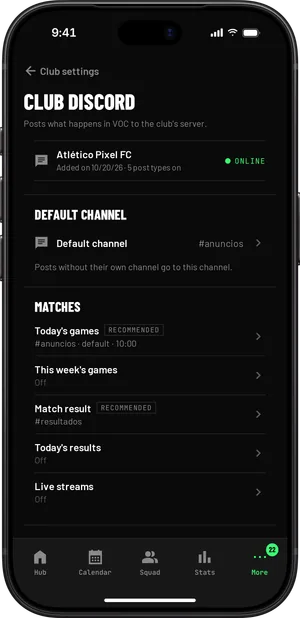
In Club settings, under Discord, choose to add the bot. Discord’s page opens so you can pick the server, which you need to be able to manage. At the end, you come back to VOC and the club is linked.
By default, only the club’s owner handles this part. The bot only writes: it sees the channels, sends messages and images, and never mentions anyone.
What the bot posts
Matches
- Today’s matches and the week’s matches
- Each match’s result and the day’s results
- Live streams, when a club or player channel goes live
Highlights
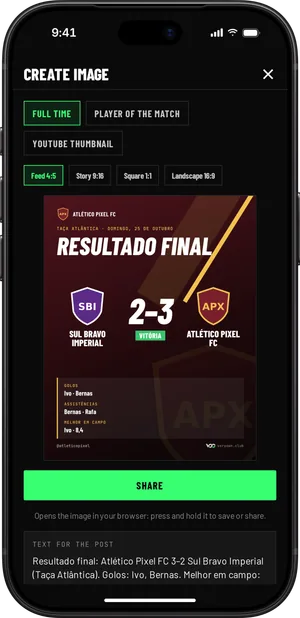
- Player of the match, after the match sheet
- Player of the week and player of the month
- Milestones for matches, goals and assists
- Team Pick: the vote and the winner
Club and team
- News, new signings and birthdays
- Honours and History
- The attendance reminder, on the day, if someone still hasn’t answered
The default channel and the recommended posts
You choose a default channel, and every type of post can have its own channel. The ones that go out at set times, such as the week’s matches on Mondays, have a time you can change.
Turn on the recommended switches on, in one go, a set designed for an active server without too many messages, around five to eight a week: the week’s matches, the day’s results, player of the week and of the month, Team Pick, news, new signings, birthdays, Honours and History. Each match’s result, live streams and the daily reminder are up to you.
Before you switch everything on, send a test post to see how it looks on your server.
Honours and history in their own channel
These two aren’t one-off posts. The bot keeps the club’s page in a channel and edits the messages when the page changes, for example when you record a new title.
If someone deletes those messages or changes the channel, the bot puts them back. Only what the public page shows appears: the titles always, the page once it’s published.
What to do if the bot leaves the server
If someone removes the bot from the server, VOC unlinks the club and tells whoever manages the settings. To bring it back, add it again in the club settings.
If a channel the bot uses is deleted, you’re told too, so you can choose another. And if you want to turn the bot off, use the club settings: the bot leaves the server.
The VOC Discord is something else
The club bot posts on your club’s server. The VOC Discord is the community server, with a clubs forum and a players forum.
The club appears in the clubs forum once it has its first match or player on record, with its recruiting status. You can turn that off under Recruiting, in the club settings.